
Artify: AI Photo Magic Editor
GrowlyPhotography
3.939.00 Reviews
- Version
- 1.1.8
- Installs
- 1.00M
- Age Rating
- Everyone
Screenshots
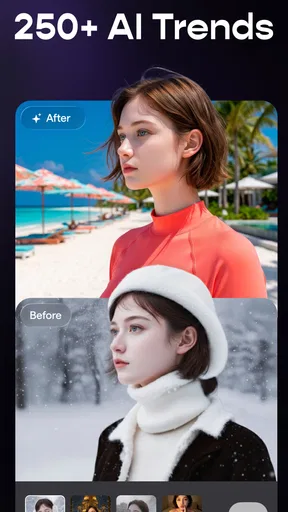

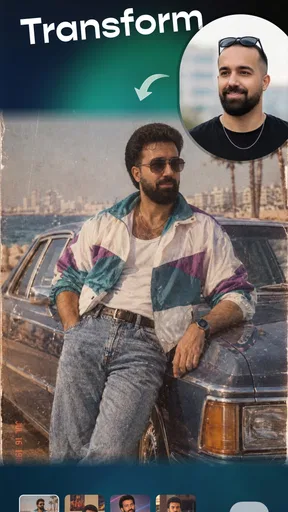
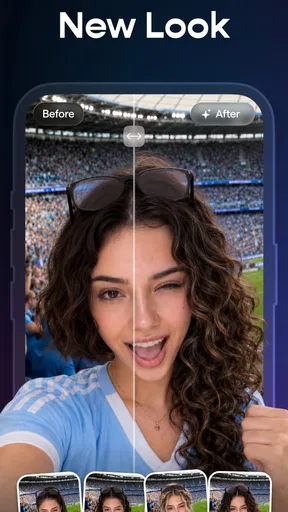
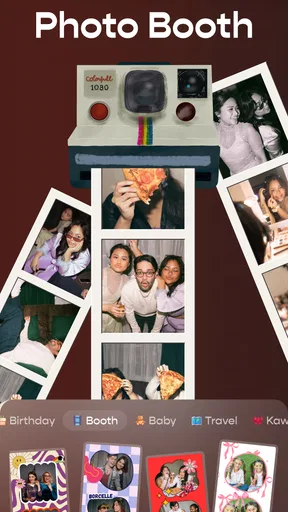
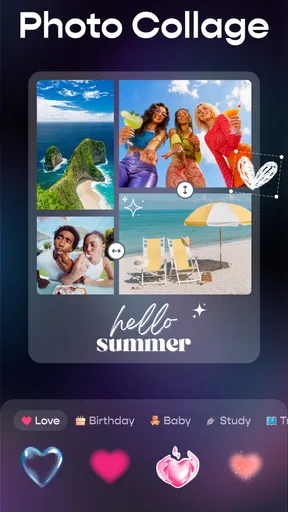
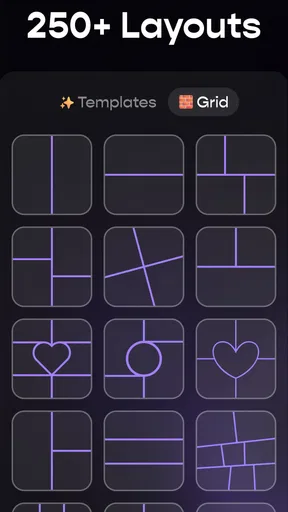

Our Review of Artify: AI Photo Magic Editor
 Analysis by Appyee
Artify: AI Photo Magic Editor is the kind of photography app I would open when a perfectly usable picture needs a quick creative lift rather than a long editing session. It brings several familiar jobs into one place: removing a background, building a collage, applying filters and effects, and improving the overall look of an image. In my experience, its main appeal is not that it replaces a full desktop editor, but that it makes everyday photo fixes feel approachable on a phone.
The app is free, aimed at Everyone, and developed by Growly. It has reached over 100 thousand installs and holds a 4.5 average from around 1.2 thousand ratings. Those figures suggest that Artify has found a practical audience among people who want quick visual results without first learning a complicated editing workflow. The current version is 1.0.5, and it runs on Android 7.0 or later, which makes it accessible on many older devices as well as newer phones.
What Artify feels like when you first open it
The first thing I noticed is that Artify is easier to understand when I approach it with a specific photo in mind. Instead of treating it as an endless effects catalog, I see it as a small toolbox for common situations: a product photo that needs a cleaner background, a group of pictures that should become one shareable image, or a portrait that looks flat and needs a little enhancement.
That distinction matters. A dedicated professional editor usually gives me more control over layers, masks, curves, export settings, and fine adjustments. Artify is better suited to a faster decision: choose a picture, try an effect or correction, compare the result, and save when the image looks ready. Its strongest use is quick visual problem-solving, not painstaking retouching.
The combination of AI-assisted editing and standard creative tools gives the app a broad starting point. Background removal is useful when the subject matters more than the original surroundings. Collage tools make sense for travel memories, small announcements, or a simple social post. Filters and effects are there for mood, while enhancement is aimed at making an ordinary shot feel clearer or more polished.
I would not install it expecting every edit to look perfect automatically. AI editing is most convincing when the subject has a clear outline and the image is reasonably well lit. Hair, transparent objects, overlapping people, and cluttered backgrounds are the situations where I would slow down and inspect the result carefully. The app can save time, but it does not remove the need for a human check before I share an image publicly.
Who will get the most from it
Artify makes the most sense for someone who edits photos occasionally and wants a friendly route to a finished image. A small business owner photographing handmade items, a student preparing a poster-like collage, or a parent arranging several family pictures can all benefit from having the main tools together. It is also a reasonable choice for anyone who finds a professional editor too crowded or intimidating.
I would be more cautious if I needed precise beauty retouching, repeatable brand templates, detailed color grading, or exact control over every edge. In those cases, a more advanced editor is likely to be the better option. Artify’s convenience is valuable, but convenience usually comes with fewer controls and less predictable fine-tuning.
Getting started without feeling lost
My recommended first session is deliberately simple. I would choose one photo that has an obvious purpose instead of importing a whole library and testing everything at once. A person standing against a fairly plain background is a good first subject for background removal. A group of related images is better for testing the collage workflow. Starting with a clear goal makes it easier to judge whether the tool helped.
After selecting a picture, I would first look for the most direct improvement rather than immediately stacking several effects. If the background is distracting, I would try removing it before experimenting with filters. If the image is dull but already well composed, I would test enhancement first. This order prevents a common beginner mistake: changing the mood of a photo before fixing the problem that made it feel weak in the first place.
For a first meaningful success, I would use a simple object photo. Imagine I have taken a picture of a mug for a small online listing, but the kitchen behind it is messy. I would load the image, try the background-removal tool, inspect the rim and handle, and then place the isolated object into a clean-looking composition if the app allows the chosen workflow. Even if I decide not to use the final image, this exercise quickly shows how accurately Artify handles edges and how much manual attention the result needs.
Portraits are another useful starting point, but I would choose one with good separation between the person and the background. After the subject is isolated, I would zoom in mentally by checking hair, shoulders, fingers, and clothing edges. A result that looks convincing at a small size may show rough cutouts when enlarged. This is one of the most useful habits I developed while testing photo editors: inspect the boundary, not just the overall impression.
A practical first workflow for a daily photo
For a casual social image, my workflow would be to select the original photo, make one structural change, apply a restrained enhancement, and then test a filter only if the image still needs a stronger mood. I would avoid combining a dramatic filter with several heavy effects on the first attempt. Too many changes can hide whether the original photo was improved or simply made busier.
If I were preparing a collage, I would group images that share something visually—same event, similar lighting, or a common color. A collage feels intentional when the pictures support one another. Randomly combining the brightest and darkest images can make the finished arrangement feel uneven, even if the layout itself is attractive. Artify can assemble the pictures, but I still need to make the editorial choice about which images belong together.
One less obvious advantage of this approach is that it gives me a reusable decision process. I can ask three questions before saving: what was wrong with the original, which tool addressed that problem, and did the new effect introduce a different problem? This keeps the AI features working as assistants rather than letting them dictate the final appearance.
Where beginners may hesitate
The word “AI” can make a photo editor sound more automatic than it really is. In practical use, I still need to choose the right source image, decide whether the result is believable, and know when to stop editing. Artify helps with the transformation, but the quality of the input remains important. A blurry photo cannot always become a sharp one simply because an enhancement option is available.
Another point of confusion is the difference between correcting a photo and decorating it. Enhancement, background removal, filters, and effects solve different problems. Enhancement is the place I would begin when the image looks weak overall. Background removal is for separating a subject. Filters change the atmosphere. Effects are more deliberately stylized. Treating every tool as an improvement can easily produce an image that is technically more processed but less useful.
I also recommend keeping the original photo untouched until I am satisfied with the edited version. This is especially important when I am experimenting with a background change or a collage. The original gives me a safe reference and lets me try a bolder idea without worrying that I have lost the starting point. That habit is valuable in any mobile editor, but it matters even more in a fast app where it is tempting to make several changes in succession.
Understanding the main tools in real situations
I find Artify easiest to judge when I connect each tool to a real task rather than treating the app as a collection of effects. In this section, I look at how background removal, collages, filters, and enhancement fit different photo goals—and where a quick result still needs a careful human check. That practical lens also helps clarify which edits are worth making before choosing a style.
Background removal is best when the subject has a clear job
Background removal is not only a novelty effect. I find it most useful when the subject needs to be reused somewhere else: a product image, a profile graphic, a simple invitation, or a visual comparison. The result is easier to judge when I already know what I want to do with the cutout. If I remove a background without a destination in mind, I may end up with an isolated subject that looks impressive but has no practical purpose.
The trade-off is edge quality. Clean objects with strong contrast are usually easier for an automated tool to separate than wispy hair, glass, leaves, or objects that share colors with their surroundings. I would not rely on a single glance. I would check the outline against a contrasting background or composition, because pale halos and missing details can be hard to notice against the original scene.
Collages reward planning more than decoration
The collage feature is useful for turning several separate memories into one image, but the layout should follow the story. For a weekend trip, I might use one wider scene as the visual anchor and smaller images for details. For a birthday, I would choose pictures that show different moments rather than five nearly identical poses. This makes the final result feel assembled, not merely filled.
A practical tip is to select the images before I start adjusting the design. If I keep swapping pictures while also changing the arrangement, it becomes difficult to tell whether the collage is improving. I prefer to settle the group first, then judge spacing, balance, and the effect of any visual styling. This workflow saves time and produces a cleaner result than trying to perfect each picture independently.
Filters and effects need restraint
Filters are the easiest tools to overuse because their impact is immediate. I like trying a strong option briefly, then backing off if the faces, skin tones, or important colors begin to look unnatural. An effect can be perfect for a playful post and completely wrong for a product image. The same feature can therefore be a strength or a weakness depending on the intended audience.
I would also avoid judging a filter only on the thumbnail or preview. Small previews can make an effect look balanced, while the full image reveals crushed shadows or distracting color shifts. My preferred process is to compare the edited image with the original after each major change. If I cannot explain what the filter improved, I probably do not need it.
Enhancement is not a substitute for a better original
The enhancement option is appealing when a picture looks soft, dark, or generally underwhelming. I use it as a finishing step rather than a rescue button. A better result usually comes from choosing the clearest available photo first, then applying enhancement lightly enough that textures remain believable. Over-processing can make details look artificial, especially on faces, hair, and patterned surfaces.
This is where Artify compares favorably with a basic phone gallery editor: it offers a more focused route to a visibly changed image. However, a standard gallery editor may still be preferable for small corrections such as cropping, rotating, or making a subtle brightness adjustment. I would use Artify when I want a noticeable creative or AI-assisted transformation, not automatically for every tiny edit.
How it compares with familiar alternatives
Compared with the editor already built into a phone, Artify is more ambitious. A default gallery app is often faster for cropping and simple light adjustments, while Artify is more useful when I want a cutout, a collage, or a stronger visual treatment. The built-in editor may also feel less distracting when I only need to fix one small issue.
Compared with a full professional mobile editor, Artify is easier to approach but less suited to exacting work. Advanced alternatives generally make more sense for photographers who need detailed control, consistent edits across many images, or a carefully managed workflow. I would choose Artify for speed and accessibility, then move to a more powerful tool when the image becomes part of a serious project.
Compared with apps focused almost entirely on filters, Artify has a wider practical range. I can use it for a functional task such as separating a subject, then add a creative finish if needed. The downside is that a specialist filter app may offer a deeper collection of styles or a more refined look for a particular aesthetic. Artify is the better all-rounder; a specialist is better when one visual style is the whole point.
There is also a difference in how I think about the app’s free price. Free access makes experimentation easy and lowers the risk for a first-time user. It is especially suitable for occasional editing, where paying for a large professional suite would feel unnecessary. At the same time, I would not assume that a free tool can match the precision, workflow depth, or consistency of a paid professional product. The sensible choice depends on whether I value convenience or control more.
Small habits that improve the final result
I get better results when I choose images with the final use already in mind. A square social post, a collage, a product presentation, and a personal portrait each benefit from different levels of cropping and styling. Before editing, I ask where the image will be seen and what needs to remain recognizable. That simple question prevents me from creating a visually attractive edit that no longer communicates its subject.
I also prefer making one major change at a time. First I remove or replace the distracting background, then I decide whether enhancement is needed, and only afterward do I test filters or effects. This sequence reveals which step actually helped. It also makes it easier to undo a poor choice without rebuilding the entire image from memory.
For collages, I would keep visual weight in mind. A very busy picture can overpower several quiet ones, while a group of similarly framed images may feel repetitive. Artify can help arrange the pictures, but I remain responsible for the rhythm of the composition. Choosing fewer, stronger images is often more effective than trying to include every photo from an event.
Finally, I would inspect the finished image at the size where people will actually see it. If it is intended for a phone screen, a small preview may be enough to catch obvious problems. If it is meant for a listing or printed design, I would examine edges and details more carefully. This is particularly important after background removal and enhancement, where artifacts can be subtle in the editor but obvious in the final use.
My recommendation for a first-time user
If you install Artify, I suggest starting with one photo and one clear goal: isolate an object, improve a dull portrait, or assemble a small story from related images. Do not begin by testing every effect. The fastest route to understanding the app is to complete one useful edit, compare it with the original, and decide whether the change genuinely serves the picture.
For a first meaningful result, I would choose a well-lit subject with a simple outline, try background removal, and then create a restrained composition around it. That workflow demonstrates the app’s most distinctive value while giving you an easy way to spot edge problems. Once that feels comfortable, move to collages and then experiment with filters and effects for style rather than correction.
Artify is not the right choice for every photographer. I would skip it if my priority were professional color management, detailed retouching, or a highly repeatable production process. I would also choose a simpler built-in editor when the task was only cropping or rotating a picture. But for a first-time mobile editor user who wants several creative tools in one approachable place, Growly’s app is a useful starting point.
My overall impression is positive because the app focuses on the moment when a photo is almost ready but needs a more noticeable change than a basic gallery editor can provide. Its free access, broad photography toolkit, Everyone rating, and support for Android 7.0 or later make it easy to try. The best results still depend on sensible source images and a careful final check, but that is a fair trade for a fast editor that helps turn an ordinary phone photo into something more presentable and personal.
Verdict
Strengths of Artify: AI Photo Magic Editor
- AI tools create artistic effects quickly with minimal editing skills.
- Includes multiple creative styles for portraits, selfies, and everyday photos.
- Simple interface makes key editing features easy to discover.
- Useful for creating eye-catching profile pictures and social media posts.
- Regular creative updates can keep the editing experience feeling fresh.
Limitations of Artify: AI Photo Magic Editor
- Some advanced effects may require a subscription or premium credits.
- AI results can vary depending on lighting, image quality, and subject position.
- Processing may take longer when applying complex AI transformations.
- Highly stylized filters may reduce natural details or facial accuracy.
- Cloud-based features may require an internet connection and photo uploads.
Other Releases by Growly
View All
LunaSpeak: AI Speaking Coach
Education4.5

Gendi AI - Ask AI Assistant
Productivity4.4

SpeakUp AI - Language Learning
Education4.8
Similar Picks in This Category
View All
Google Photos
Google LLC4.4

Gallery
Google LLC4.2

Picsart AI Photo Editor, Video
PicsArt, Inc.3.9

B612 AI Photo&Video Editor
SNOW Corporation4.1

BeautyPlus-Selfie Photo Editor
PIXOCIAL TECHNOLOGY (SINGAPORE) PTE. LTD.4.5

Remini - AI Photo Enhancer
Bending Spoons4.1
Frequently Asked Questions
What is Artify: AI Photo Magic Editor, and what can it do?
Artify: AI Photo Magic Editor is a mobile photo-editing app designed to enhance images with artificial intelligence. It may offer tools such as artistic filters, portrait effects, background changes, automatic improvements, object removal, and creative transformations. The exact features can vary by version and device, so users should review the current app listing before downloading. It is best suited to people who want quick, stylized results without using complex professional editing software.
Is Artify: AI Photo Magic Editor free to download and use?
The app may be available as a free download, but some editing tools, effects, export options, or advanced AI features can require in-app purchases or a subscription. Before starting a trial, carefully check the pricing, renewal terms, and cancellation instructions shown in the app store or inside the application. Free access may also include advertisements, limitations on image quality, or restrictions on how many AI edits can be created.
Does Artify require an internet connection to edit photos?
Many AI-powered editing functions require an active internet connection because photos are processed on remote servers rather than entirely on the device. Basic adjustments may work offline, depending on the version, but advanced transformations, generative effects, and cloud-based tools could be unavailable without Wi-Fi or mobile data. Users should also consider upload times and data usage when editing large images or creating several AI-generated results.
Are photos uploaded to Artify safe and private?
Before uploading personal pictures, users should read Artify’s privacy policy and understand how images are collected, processed, stored, and deleted. AI editing services may temporarily send photos to external servers to apply effects, and the handling of biometric or facial information can be especially important for portrait images. Avoid uploading sensitive documents or private photographs unless the app clearly explains its security practices and retention policy.
Is Artify suitable for professional photo editing and high-quality exports?
Artify can be useful for social media posts, profile pictures, creative portraits, and quick visual experiments, but it may not replace professional desktop software. AI effects can sometimes produce inconsistent details, altered facial features, artifacts, or unnatural backgrounds. Export resolution, file formats, watermarks, and editing precision may also depend on the selected plan. Users needing accurate color control, layered editing, or print-ready files should verify these capabilities first.
